
Video Walkthrough
Step by step tutorial:
- Log in to Documentum by going to https://edocuments.utexas.edu
- Authenticate using your EID and Password as well as DUO (Two Factor Authentication)
- Navigate to the content you would like to add to your Canvas course by selecting the files of interest. For a video tutorial on searching within Documentum click here:
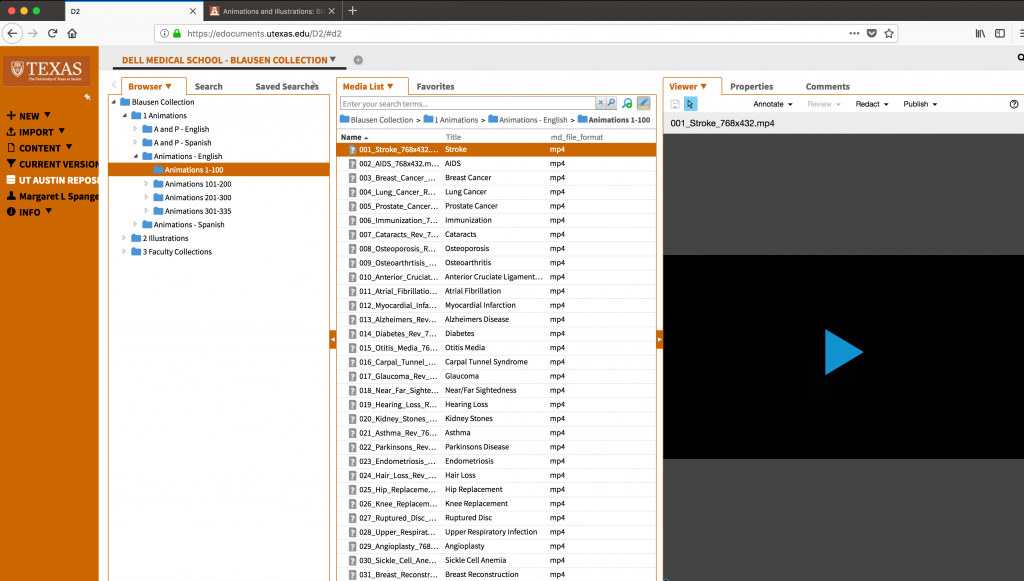
- From Viewer you can preview the content you are considering.
- Once you have decided on which content you would like to add to your Canvas course select the Properties Tab and scroll to the bottom where you can find the Canvas Link field.
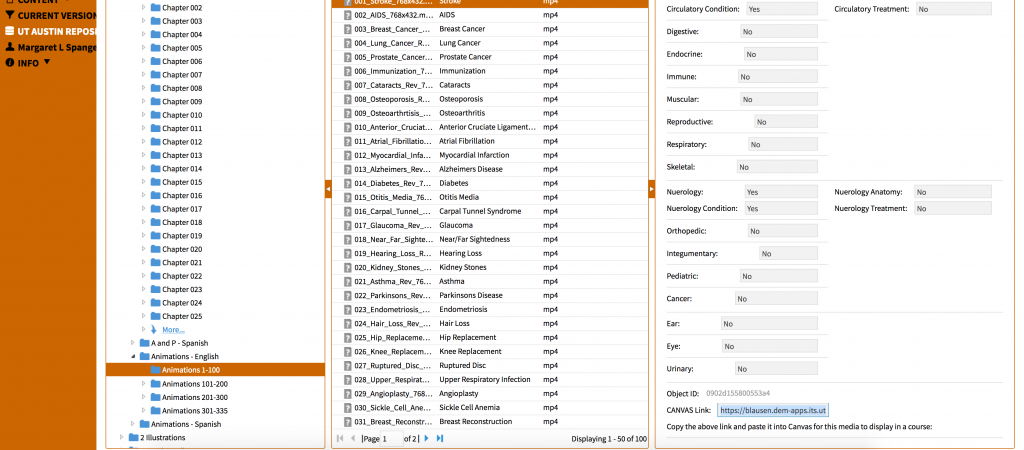
- Copy the link.
- Navigate to https://canvas.utexas.edu
- Select the Course you would like to add the Blausen Content to. You will be able to add the content in any Rich Text Editor field within Canvas, in this example we’ll assume you are adding it to an existing Page.
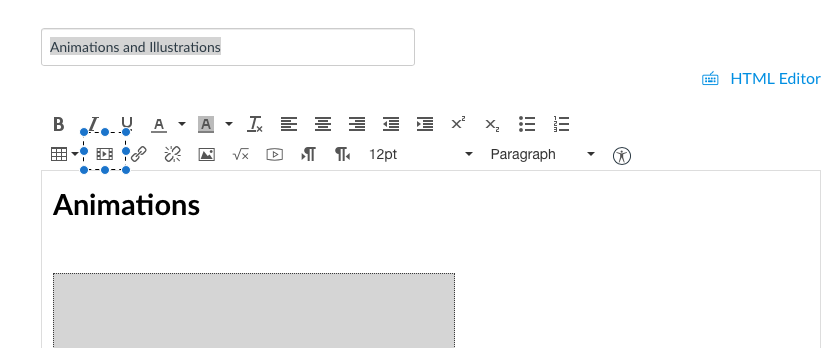
- Click on the Page you would like to add it to and select Edit. Use the Insert/Add Media tool:
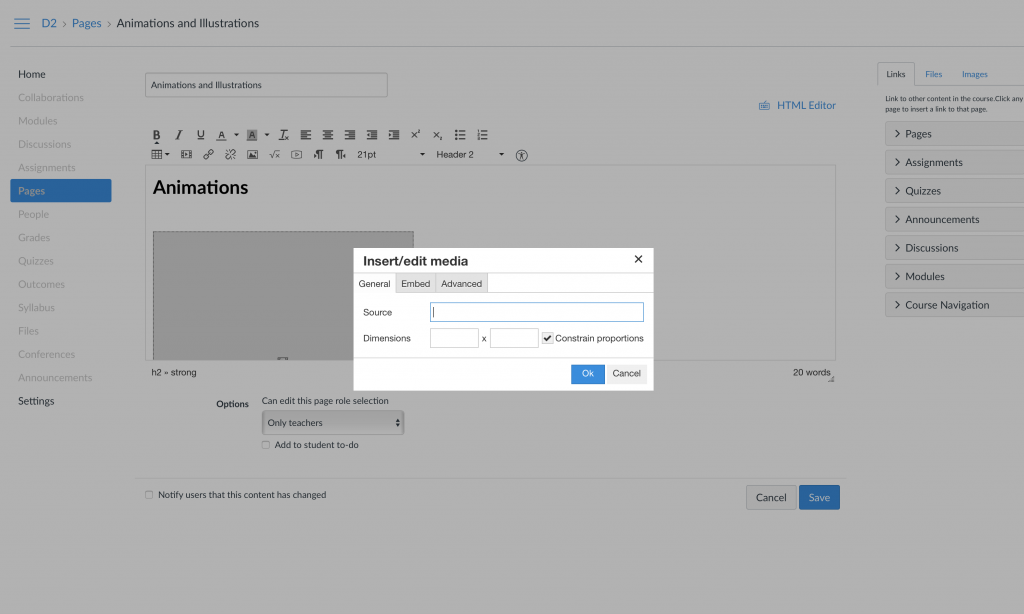
- Paste the link you copied from Documentum into the Source field.
- Click OK.
- Click Save.
- Click Publish when you’re ready to share the page with your class.